The Hushscript Chrome extension is a free audio recorder for Chrome tabs and your microphone. You can record and save the file as OGG or MP3 with no account needed. If you want text, upload the recording and Hushscript transcribes it in about 99 languages with speaker labels.
Install from the Chrome Web Store
What the Chrome extension does
- Records a Chrome tab, your microphone, or both. You pick the source in one click from the toolbar button. The tab stays audible while it records.
- Records up to five tabs at the same time, with the microphone in one of them.
- Saves each recording to your device while you record, so a closed side panel or a browser crash does not lose it.
- Saves a copy as OGG or MP3, wherever you choose, with no account needed.
- Imports audio and video files you already have. Choose them or drop them on the side panel, many at once. Merge several into one transcript.
- Transcribes in about 99 languages with speaker labels, with options for language, key terms, and a prompt.
- Exports transcripts as TXT or SRT, or copies them.
- Has a private mode that keeps no transcript in your account.
Chrome audio capture: record a tab, your microphone, or both
Click the Hushscript button in the toolbar and choose what to record: the current tab, your microphone, or both mixed into one recording. The extension records only when you start it, by click or by keyboard shortcut. It does not start on its own, join anything, or record in the background.
You can run up to five recordings at the same time, one per tab, with the
microphone in one of them. The side panel lists every recording in progress
and every file on your computer, with pause, resume, stop, upload, save, and
delete controls. A shortcut starts and stops the current tab’s recording
(Alt+Shift+R by default) and another pauses it (Alt+Shift+P). You can change
both on chrome://extensions/shortcuts.
A recording can run for up to 10 hours. The elapsed time stays in view. Once you sign in, your minutes left show in the toolbar popup and at the top of the side panel.
If you only need your microphone and would rather not install anything, the free online voice recorder records in the browser and uploads nothing.
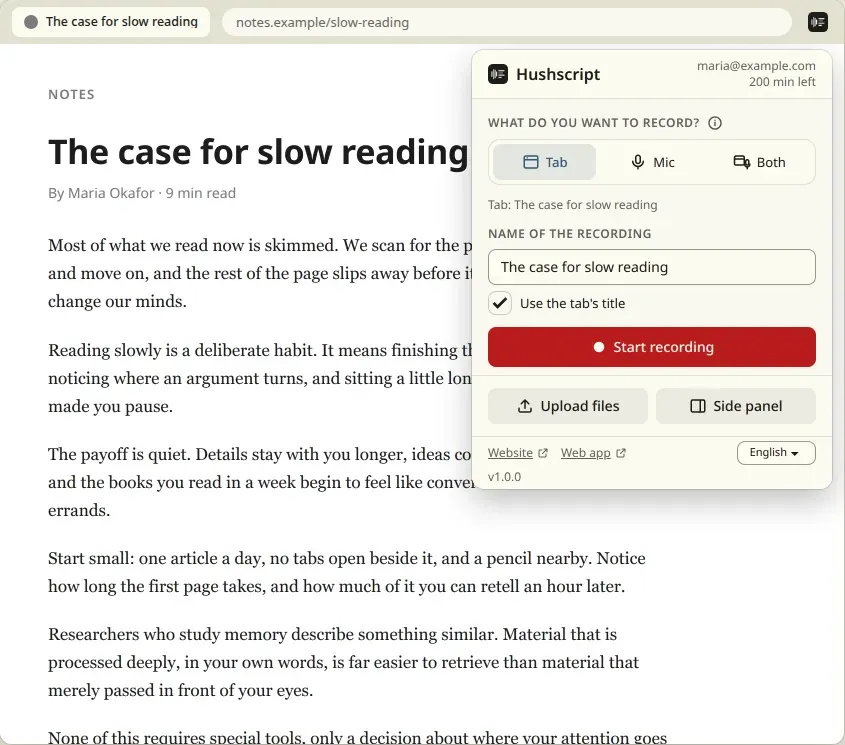
Record computer audio from a Chrome tab, no Stereo Mix or Audacity
Common ways to record computer audio involve Stereo Mix, a loopback driver, or an Audacity setup. For audio playing in Chrome you need none of them. Start a tab recording and the extension takes the sound from that tab.
Be clear about the limit. The extension records two sources: a Chrome tab and your microphone. It does not record the whole system. Sound from other apps, or from other browsers, is not captured.
Record audio from a website: streaming audio, webinars, lectures, podcasts
Audio that plays in a Chrome tab can be recorded: a webinar, an online lecture, a podcast episode, a talk, or a call that runs in a browser tab. Start the tab recording before it begins and stop it when it ends. The tab keeps playing out loud while it records.
Only record what you have the right to record. Recording a call, a class, or a meeting may need the other people’s consent. Tell them before you record.
When you want the words, upload the recording for a transcript. Pages for the usual cases explain the details: lecture transcription, podcast transcription, and meeting transcription.
Recordings are saved as you record
The extension writes the recording to your device while it runs. If the panel closes or the browser crashes, the part already recorded is recovered the next time you open the side panel, and you can upload or save it from there.
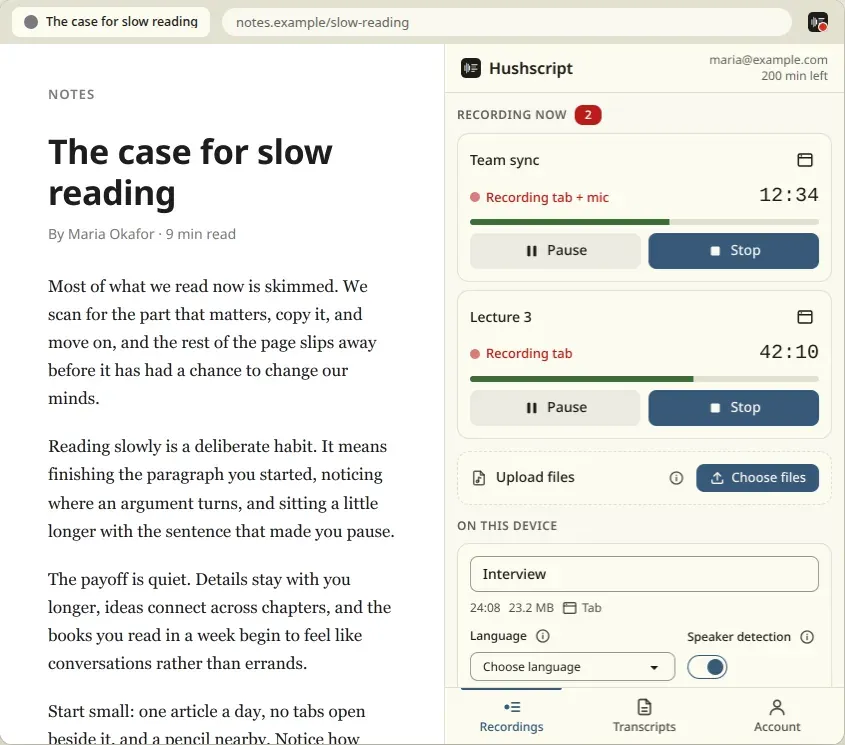
Free MP3 recorder: save a recording as MP3 or OGG
Each recording is mono Opus audio at 192 kbps in an OGG file, about 86 MB per hour. Save it to a folder you choose, with “Save as”, or to your Downloads folder. The file format is your choice: the original OGG, which is smaller, or an MP3 that plays everywhere. The MP3 is made on your computer, and its temporary copy is deleted once it is saved. You do not need an account to save.
If you already have an OGG file and want an MP3 later, the free OGG to MP3 converter does it in your browser. The audio converter covers other formats.
To save every recording without clicking, turn on “Save each recording to Downloads” on the Account screen. It is off by default. Each recording from a tab or your microphone is then copied to a Hushscript folder inside Downloads when you stop it, as OGG or MP3, signed in or not. Chrome is asked to allow downloads only when you turn it on.
Once you upload a recording, the extension removes its own copy from this device when the transcript is ready, and Hushscript does not store your audio after transcription. Save a copy first if you want to keep the file.
Import a file and transcribe it
You can also use the extension for recordings you did not make with it. Choose audio or video files in the side panel, or drop them there. The picker and a drop take many files at once. Common formats such as MP3, M4A, WAV, MP4, and WebM work. The extension copies each file into its own storage, checks it, and turns it into a card like any other recording. Your original files are never changed, and deleting a card deletes only the copy.
With several files, “Upload all” sends them together, and “Upload what fits your minutes” sends as many as your balance covers. “Merge files into one transcript” joins two or more imported files, in the order you choose, into a single transcript.
A file Chrome cannot read, a file longer than 10 hours, or one that is too large for the extension is refused with a plain reason and a link to the web app’s upload page, which accepts more formats.
Transcribe audio to text with speaker labels
Press Upload and transcribe on a stopped recording or an imported file. Transcription runs on Hushscript’s servers, not on your computer, and returns text with speaker labels. To transcribe a file you already have, without the extension, see audio to text and speech to text. Before you upload, you can set:
- the audio language, or leave it on automatic detection (about 99 languages);
- speaker labels, on or off;
- key terms, one per line, for names and words the transcript should get right;
- a prompt, and your saved dictionaries and prompt presets from Hushscript.
The extension remembers your last choice until you sign out. Set your defaults once under Account, Transcription defaults, or keep separate settings for each site you record. For that, the extension keeps only the recorded tab’s site name.
Transcription uses prepaid minutes with no subscription. Packs start at $1.99 for 45 minutes, and the largest pack comes to about $0.50 per hour of audio. Eligible personal accounts get 30 free minutes once, after card verification or with a first purchase. See pricing for every pack, or how it works for the steps after the upload.
Get the text out
The Transcripts tab in the side panel shows your 10 most recent jobs. Copy a transcript, download it as TXT or SRT, or open it in Hushscript. Your full history, other export formats, and deleting a transcript live in the Hushscript web app, and “Open in Hushscript” takes you there. The extension can also send a notification when a transcript is ready. It asks for that permission only when you turn the notification on.
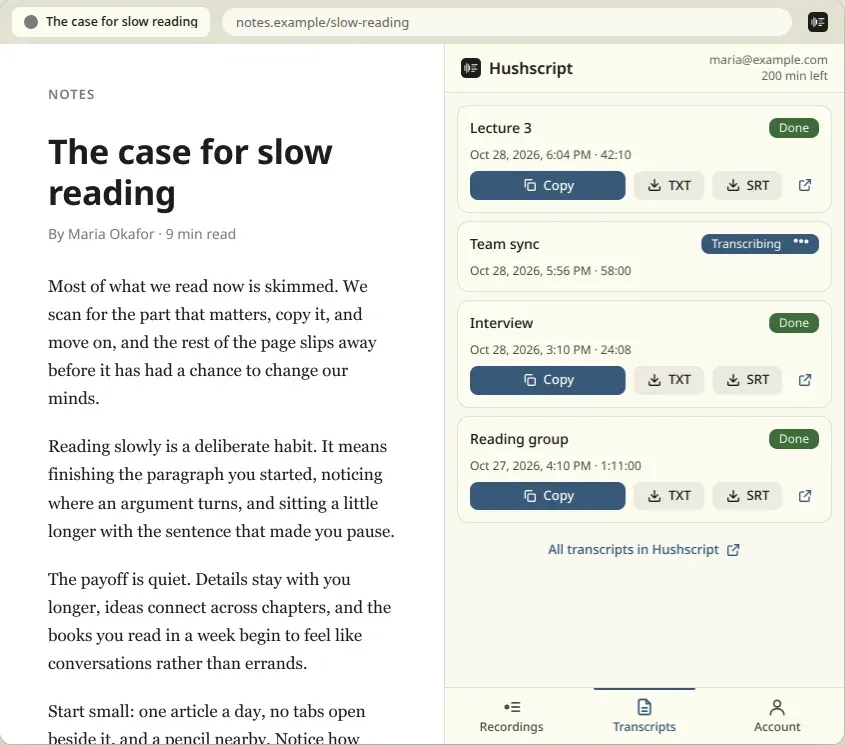
Private mode
Switch private mode on before you upload. The recording is transcribed, no transcript is saved in your account, and you finish in Hushscript, where you set the password for the archive. The encrypted result is held for up to 24 hours for you to download, then deleted. Read how it works on the private transcription page.
What needs an account
| Task | Account needed |
|---|---|
| Record a tab, your microphone, or both | No |
| Save a copy of a recording, as OGG or MP3 | No |
| Import files into the extension | No |
| Upload for transcription | Yes, with enough minutes |
| Read, copy, and export transcripts | Yes |
To upload, the extension opens Hushscript sign-in in a Chrome window. Your account holds your minutes balance and your transcripts. The extension stores a narrow access token on your device that you can see and revoke in your Hushscript account. Signing out revokes it and removes it from the browser; if Hushscript can’t be reached at that moment, the token stays on your device only until the extension can revoke it.
Hushscript sells minutes by the pack with no subscription, and the extension takes no payments: “Buy minutes” opens billing in the Hushscript app. Packs and prices are on the pricing page.
Privacy and permissions: what the extension can see and send
The extension has no content scripts and no access to the sites you visit. It never reads page content or your history. For a tab you record, it keeps only the site name (for example, example.com) to reuse your settings for that site. The popup shows the title of the current tab, and that title is saved with a tab recording only while “Use the tab’s title” is on. It is on by default, and you can turn it off.
Recordings and files stay on your computer until you upload. When you sign in, upload, or view your balance and transcripts, or when it sends an error report after something fails, the extension talks to Hushscript and its storage provider (Cloudflare), and nowhere else. An upload sends the recording or file, its title, and the transcription options you chose. The extension has no ads and no analytics. Error reports carry no audio, titles, file names, page addresses or account details, and you can turn them off on the Account screen. Hushscript removes its transcription audio after processing and never trains on your recordings. Recordings and files you have not uploaded stay on your device until you delete them.
The full list of what the extension stores, what it sends, and for how long is in the Chrome extension section of the privacy policy.
Tab audio recorder or screen recorder?
A tab recorder and a screen recorder solve different jobs. If you want the sound of a lecture, a webinar, or a call, and not the picture, a tab recorder is the lighter tool.
| Hushscript tab recorder | Screen recorder | |
|---|---|---|
| What it saves | Audio only, as OGG or MP3 | Video with sound |
| File size | About 86 MB per hour | Larger, because it stores video |
| Sources | A Chrome tab, your microphone, or both | The screen or a window |
| Starts | Only when you click or press the shortcut | Depends on the tool |
If you need to see what was on the screen, use a screen recorder. If you need the audio, or the words, record the tab.
What the extension does not do
- It does not transcribe on your computer. Audio goes to Hushscript to be transcribed.
- It does not record the whole system. Only a Chrome tab and your microphone are captured, not other apps or other browsers.
- It does not join meetings, add captions to pages, or type into text fields.
- It does not delete transcripts from the panel. Deleting is done in the Hushscript app.
- It works in Chrome 120 or later. Other browsers are not supported.